
Distribution Modes and Group Limits
Grupos Inteligentes gives you full control over how your leads are distributed across your WhatsApp groups. Each mode fits a different launch or service strategy. Additionally, you can set a maximum number of participants per group to ensure the best lead experience and avoid overcrowded groups.
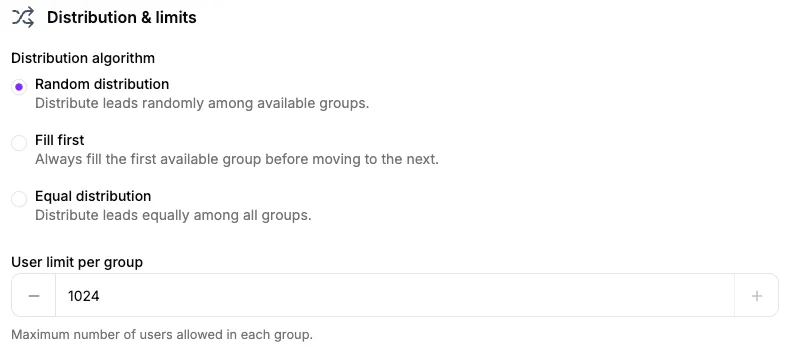
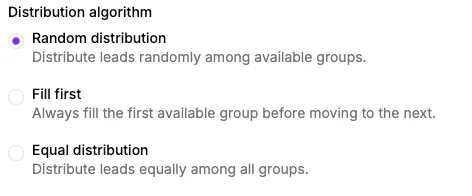
Meet the 3 Distribution Algorithms
1. Distribute Randomly
In this mode, the system randomly chooses any group that still has available slots.
- Advantage: Fast and unpredictable distribution.
- Ideal use: When you want to populate all groups simultaneously without a specific order.
- Important: The system never sends leads to groups marked as full.
2. Always Keep the First Available Group Full (Sequential)
The system focuses on filling the first group in the list before moving on to the second, and so on.
- Advantage: Total focus on one community at a time.
- Ideal use: Fast launches where you want to create a sense of urgency (“Group 1 full, join Group 2!”).
- Order: Priority is based on the registration date (older groups first).
3. Distribute Equally Among Groups (Equalitarian)
The algorithm tries to keep all groups with the same number of members.
- Advantage: Perfect balance among communities.
- Ideal use: When you have multiple salespeople and want each to receive the same volume of leads.
- Example: If you add a new group to a redirector where all other groups already have 50 people, the system will focus on the new group until it also reaches 50 people.
How to Change the Distribution Mode
- In the Dashboard, go to Redirectors.
- Click View on the chosen redirector.
- Locate the Lead distribution mode section.
- Select the option that best fits your strategy.
- Click Update.
Limit Users per Group
Defining a user limit helps keep your WhatsApp communities organized. With Grupos Inteligentes, when a group reaches the defined limit, the system automatically starts sending new leads to the next available group.
Step-by-Step to Limit Participants
Follow the instructions below to configure the capacity limit for your groups:
- Access the Redirectors menu in the administrative panel.
- Click the View button on the redirector you wish to configure.
- Scroll down the page until you find the Limit number of users per group section.
- Enter the maximum number of members allowed (e.g., 250).
- Click Update to apply the rule to all groups in this redirector.

How to view and manage group occupancy
After setting the limit, you can easily monitor and adjust your groups’ occupancy.
Capacity visualization
In the groups tab, each group shows:
- How many members it currently has (e.g., “15/100”)
- A colored bar indicating the status:
- 🟢 Green: Below 70%
- 🟡 Yellow: Between 70% and 99%
- 🔴 Red: Group is full (100%)
This helps you quickly identify which groups need attention or new members.
Manually editing members
Sometimes you need to manually adjust the member count. This is useful when:
- You manually removed people from a group and need to update the system
- Performed an external sync and need to align the data
- Corrected count errors
To adjust:
- In the groups list, click the edit button on the desired group
- Change the “Slots filled” field with the correct number
- Save your changes
Bulk editing multiple groups
To quickly update multiple groups at once, you can use bulk editing:
- Click the “Edit slots” button
- Enter the number of members for each group
- Click “Save all”
Pro tip: Use this after finishing a launch to reset all group counts and start the next one clean.
Why limit the number of members?
- Scalability: Allows managing large launches without manual intervention.
- Engagement Control: Smaller groups typically have higher interaction and conversion rates.
- Security: Prevents leads from clicking on links for groups that are already 100% full, which would cause frustration.
Imagine this scenario: you set the limit to 250 people. Group A already has 250 members. When a new lead clicks the link, Grupos Inteligentes automatically redirects them to Group B. When B is also full, the next one goes to Group C — and so on. You don’t need to do anything manually!
Expert Tips
- WhatsApp has its own technical limits (currently around 1024 members). We recommend setting slightly lower limits to ensure everyone can join.
- Combine this function with automatic participant updates for a 100% hands-free workflow.
SEO and Conversion Tip
When using sequential mode, you can customize the redirection message to create scarcity, informing leads that groups are filling up quickly.