
How to Create WhatsApp Redirectors: One Link for Multiple Groups
The redirector is the core feature of Grupos Inteligentes. It works like an intelligent “bridge”: you promote a single link, and the system decides in real time which WhatsApp group the lead should be sent to, based on available slots and distribution rules.
What is a WhatsApp Redirector?
Imagine needing to organize 5,000 people into WhatsApp groups (which have participant limits). Doing this manually would require changing the promotion link every time a group filled up.
With a Redirector, you automate this entire process. You can configure 10, 20, or as many groups as needed under a single link. The system handles the logistics for you.
How to Create Your Redirector
Creating a redirector is simple. If this is your first time, you’ll see a guided wizard with 3 steps. Otherwise, click New redirector to get started.
Creation Wizard (First time)
If you don’t have any redirectors yet, the system will show you a step-by-step wizard:
Step 1 - Redirector:
- Set the Description (e.g., Black Friday Campaign 2026).
- The URL Suffix is automatically filled based on your description. You can change it manually if you prefer.
- Click Next.
Tip: The URL suffix is generated automatically from the description. For example, “My Sales Group” becomes
my-sales-group. If you edit it manually, auto-fill stops. Clear the field to re-enable it.
Step 2 - Groups:
- Paste your WhatsApp group links.
- Use space or new line to separate each link.
- The preview shows the status of each link. Duplicate links are automatically removed — only one will be registered.
- Click Create redirector to continue.
Step 3 - Link:
- Copy your unique link.
- Share it with your audience.
Standard Creation (Existing users)
For users who already have redirectors, you can create a new one at any time in two ways:
- From the Dashboard: When accessing the Grupos Inteligentes Dashboard, find the Create redirector button in the upper right corner.
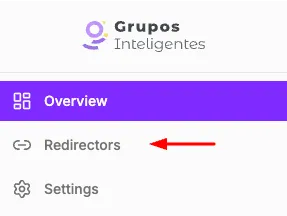
- From the sidebar: Click Redirectors in the sidebar to access the redirectors list, then click Create redirector.
Once you start the creation:
- Fill in the Description (e.g., Black Friday Campaign 2026).
- The URL Suffix is automatically filled based on your description. You can change it manually if you prefer.
- Click Create.

After Creating Your Redirector
Once you create a redirector, you will be redirected to its details page. At the top, you will see the description, status (Active or Disabled), the public link with a copy button, and two quick metrics: number of linked groups and current occupancy.
Health Score
The Health Score is a percentage indicator that appears at the top of the redirector page, along with the other quick metrics. It shows how well utilized your redirector is in terms of occupancy.
How it is calculated:
Health = (Total filled slots / Total capacity) × 100Where total capacity is the number of active groups multiplied by the configured maximum slot limit.
What each range means:
| Range | Meaning | Recommended action |
|---|---|---|
| 0-40% | Underutilized | Evaluate if the redirector is receiving adequate traffic |
| 40-80% | Balanced | Ideal operating range |
| 80-100% | Well utilized | Consider adding more groups if near 100% |
Below the summary, you will have access to three tabs:
Groups
Manage the WhatsApp groups linked to your redirector.
No groups yet: If you haven’t added groups yet, you will see a screen with the Create groups button, where you can paste all your WhatsApp group links at once.
With groups: You will have a complete list with the name, link, and filled slots of each group. You can:
- Filter and sort by name, available slots, or occupancy.
- Edit a group’s information individually.
- Bulk update slots for multiple groups at once.
- Add more groups at any time.
Reports
Track your link’s performance with real-time metrics:
- Total Clicks: How many times the link was accessed in the period.
- Daily Average: Average clicks per day.
- Slot Usage: Percentage of filled slots.
You can view the data in charts with periods of 7, 30, or 90 days. VIP users also have access to the 24-hour period.
Settings
Customize your redirector’s behavior:
- Basic Information: Change the description and URL suffix.
- Distribution: Choose how leads are distributed among groups and set the slot limit.
- Fallback: Configure a message and destination URL for when all groups are full.
- Trackers: Add Facebook Pixel, Google Analytics, and ActiveCampaign.
- Advanced: Enable automatic participant counting and configure the page watermark.
Deleting and Restoring Your Redirector
30-Day Scheduled Deletion
When you click Delete on the redirector page, the system does not remove it immediately. Instead, it is scheduled for automatic deletion in 30 days.
The redirector status will change from “Active” to “Scheduled for deletion”. During this period:
- You can restore it by clicking the “Restore” button at the top of the page.
- You cannot add or edit groups (group creation/editing is blocked).
- You cannot update settings (settings are frozen until restoration).
- The link stops forwarding leads — no one will be directed to groups until it is reactivated.
Permanent Deletion
After 30 days:
- The redirector is permanently deleted.
- It cannot be restored.
- The link stops working and shows an error if accessed.
Use scheduled deletion with confidence: if you change your mind, simply click “Restore” to reactivate the redirector.
Next Steps
- Learn How to add WhatsApp groups to your redirector.
- Understand the different lead distribution modes.
- Configure tracking pixels for your campaigns.