
How to Edit Redirector Basic Information
The redirector is the smart link you use in your campaigns. You can change the main information at any time.
Where to Find the Settings
- Go to the Grupos Inteligentes Dashboard.
- In the side menu, click on Redirectors.
- Click the View button on the redirector you want to edit.
- On the page that opens, click the Settings tab.
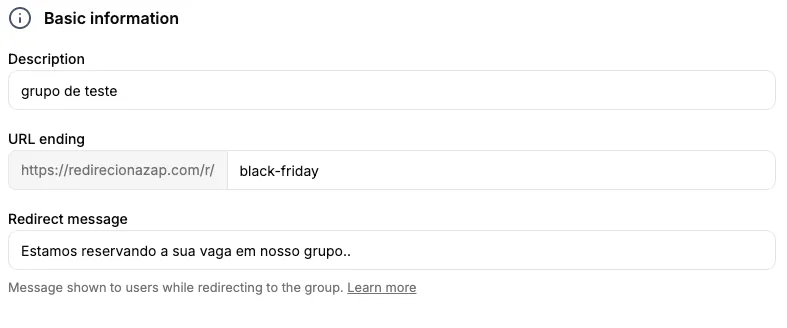
What You Can Edit
Description
This is the internal name you use to identify this link. This information is for your organization only — it does not appear to users.
- What to enter: An easy-to-remember name for your campaign
- Examples: “March 2026 Launch”, “Facebook Sales”, “Black Friday”
- Limit: Up to 255 characters
URL Ending
This is the custom part that appears at the end of your public link. This changes the actual link your users access.
- How it looks:
redirecionazap.com/r/your-url-ending-here - Rules:
- Use only letters, numbers, hyphens (-), and underscores (_)
- Do not use spaces or special characters (@, #, $, etc.)
- Limit of 20 characters
- Case-sensitive
Redirect Message
This is the text shown on the user’s screen while they are being forwarded to the WhatsApp group.
- What to enter: A short message to inform what is happening
- Examples: “Joining the group…”, “Processing your access…”, “Please wait…”
- Limit: Up to 64 characters
- When it’s useful: Makes it clear the system is working, prevents the user from leaving the page
How to Save Changes
- After editing the desired fields, click Save changes at the bottom.
- The Save changes button only becomes active when you have made a change.
- A confirmation message will appear if everything goes well.
Common Situations
You want a more professional link → Change the URL ending with your brand or campaign name.
Forgot what the link was called → Use the description with a descriptive name you can easily remember.
Want to change the redirect message → Just edit the redirect message field.
Next Steps
After editing the basic information:
- Set up the distribution mode for leads
- Configure the fallback for when groups are full
- Configure your trackers to measure results
- Enable automatic update if you’re a VIP subscriber