
Managing WhatsApp Groups in Grupos Inteligentes
WhatsApp groups are the final destination for your leads. In Grupos Inteligentes, you can organize multiple groups under a single redirector, so you can scale your operation without manually swapping links as groups fill up.
How to Add WhatsApp Groups
To start distributing leads, you need to register your groups in the Dashboard:
- Go to the desired redirector’s page in your Dashboard.
- In the Groups tab, click the Add groups button.
- Paste the WhatsApp invite links into the text area. You can add multiple links at once — one per line or separated by space.
- The system automatically checks which links are correct and creates the groups.
- Click Create to finish.
The system gets each group’s name from WhatsApp and fills it in for you. If you need to change it later, just edit it.
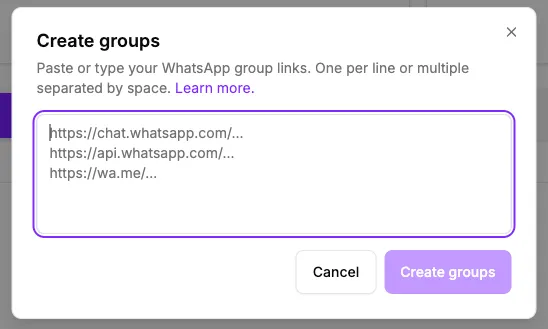
Accepted link formats
WhatsApp invite links must be in one of the following formats:
https://chat.whatsapp.com/...https://api.whatsapp.com/...https://wa.me/...
View and Manage Existing Groups
In the groups list, you have full control over your registered destinations:
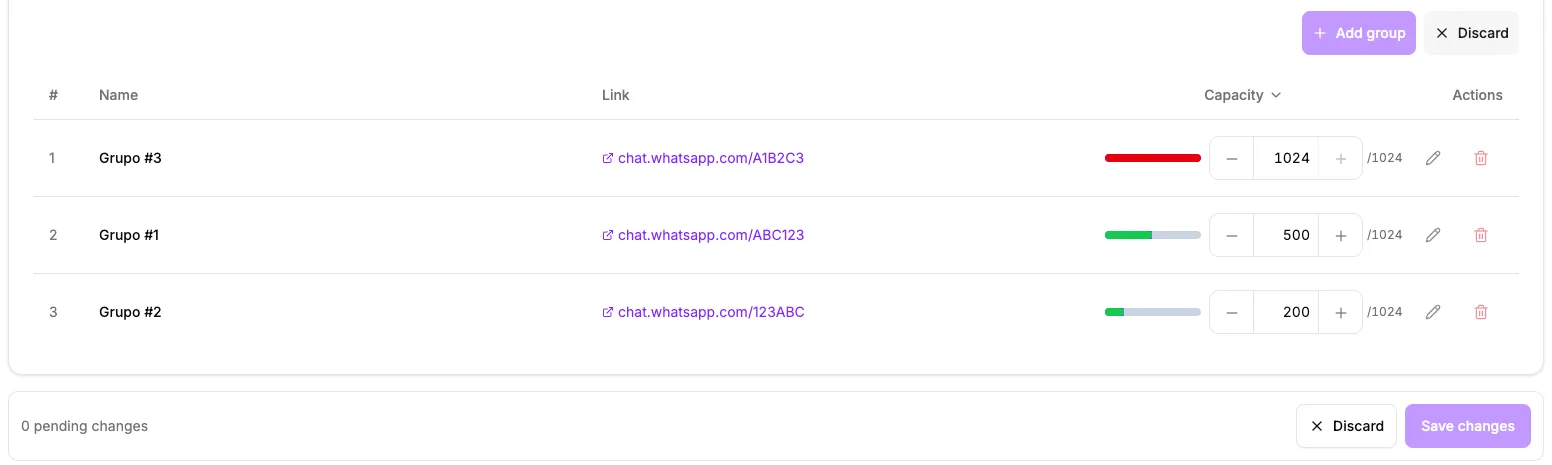
- Status: See the name and status of each group.
- Capacity bar: A visual indicator shows how full each group is (green, amber, or red).
- Link testing: Click the link icon to verify if the WhatsApp invitation is still active.
- Editing: Change the name or participant count of each group.
- Deletion: Remove groups that are no longer needed.

Filters and sorting
To make managing large numbers of groups easier, use the available filters:
- Search by name: Quickly find groups by name.
- Vacancy filter: Show only groups with available slots or only full groups.
- Sorting: Organize the list by occupancy, name, or creation date.
How to Edit a Group
To change the details of a specific group:
- In the groups list, click the edit icon for the desired group.
- Change the name or filled slots count.
- Click Save.
Bulk Edit Slots
When you need to update slots for multiple groups at once, use the bulk edit feature:
- In the groups list, click Edit slots.
- Change the filled slots count for the desired groups. Changed fields are highlighted.
- Click Save changes to update all at once.
To cancel, simply click Discard and no changes will be saved.
How to Delete a Group
To remove a group that is no longer needed:
- In the groups list, click the delete icon for the desired group.
- Confirm the deletion in the dialog that appears.
Bulk Create Groups in an Existing Redirector
If you already have groups in your redirector and want to add several at once:
- In the Groups tab, click Add groups.
- Paste the WhatsApp invite links into the text area — one per line or separated by space.
- The system checks which links are valid and creates all groups at once.
- Click Create to finish.
Tip: Duplicate links are removed automatically. If a link is already registered in the redirector, it will be ignored.
Participant Synchronization
Keeping the participant count updated is important for accurate redirection.
Automatic Update (Recommended)
Manual Update
If you’re on another plan, you can update the numbers manually:
- Go to the groups list.
- Use bulk editing to change the filled slots for multiple groups at once.
- Click Save changes.
Next Steps
- Define a user limit per group.
- Choose the best lead distribution mode.
- Monitor performance in conversion reports.