
Automations: automatic group creation
With Automations, you do not need to rush to create new groups when your current ones fill up. The system watches the vacancies in your redirectors. When they run low, it creates a new WhatsApp group, sets it up, and adds it to your link.
Your redirector link stays the same. You only define once how new groups should look.
What you can do
Section titled “What you can do”- Connect one WhatsApp account only once. All your redirectors use this same connection.
- Link the groups you already have to your redirectors.
- Create groups automatically when free vacancies drop below 10%.
- Define how new groups start: numbered name, description, image, member permissions, and disappearing messages.
- Add backup administrators to new groups.
- Limit group creation per day and set a waiting time between groups.
- Follow the activity of everything the automation did or will do.
Before you start
Section titled “Before you start”Check these items:
- Your account must be on the Scale plan or in the 14-day trial.
- Have a phone with the WhatsApp account that will create and manage the groups.
- This account must be an administrator of the groups you want to link.
- Have at least one redirector. If you do not have one, you can create it during setup.
Tip: Use a WhatsApp number dedicated to your business. This way, the created groups do not depend on a team member’s personal phone.
Where to find it
Section titled “Where to find it”In the dashboard side menu, click Automations. The page has two tabs:
| Tab | What it is for |
|---|---|
| Overview | Shows the connection, main numbers, pending groups, and redirector list. |
| Activity | Shows upcoming actions and the history of what has already been done. |
You also find the same settings in the Automation tab of each redirector.
Set up for the first time
Section titled “Set up for the first time”The Guided setup takes you through four steps. You set up one redirector at a time.

1. Connect WhatsApp
Section titled “1. Connect WhatsApp”- In Automations, click Connect WhatsApp. If you are already connected, the button is called Set up automations.
- On your phone, open WhatsApp and go to Linked devices > Link a device.
- Point the camera at the QR code. If you prefer, use the pairing code.
- Wait for the confirmation. The system looks up the list of your groups, which may take a few minutes.
If you started a connection before, the status shows Connecting. Click Reconnect to generate a new code or Refresh status to check again.
Tip: The QR code and the pairing code give access to your account. Do not share either of them.
2. Choose the redirector
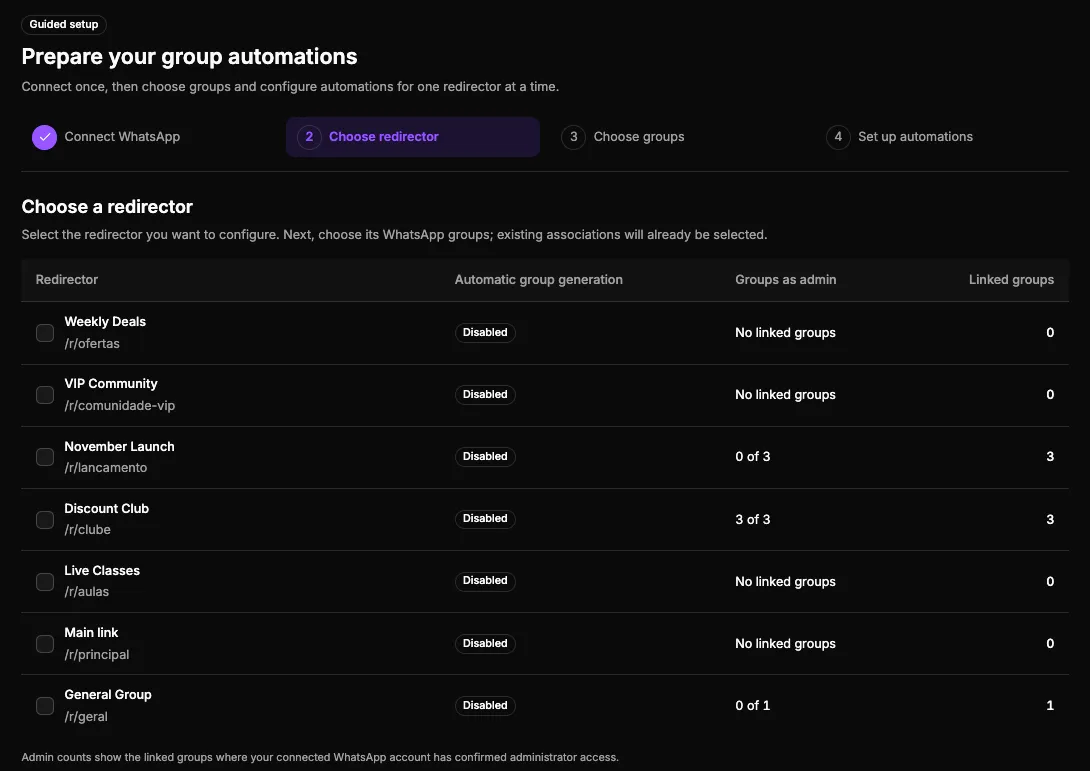
Section titled “2. Choose the redirector”Choose the redirector you want to set up. The table shows whether Automatic group generation is already enabled. It also shows in how many linked groups the connected number is an administrator. Then click Choose groups.
3. Choose the groups
Section titled “3. Choose the groups”The list shows your WhatsApp groups and how many participants each one has. Below each group, you see whether the connected number already has Administrator access available. If you see Administrator access still needs verification, check that this number is a group administrator.
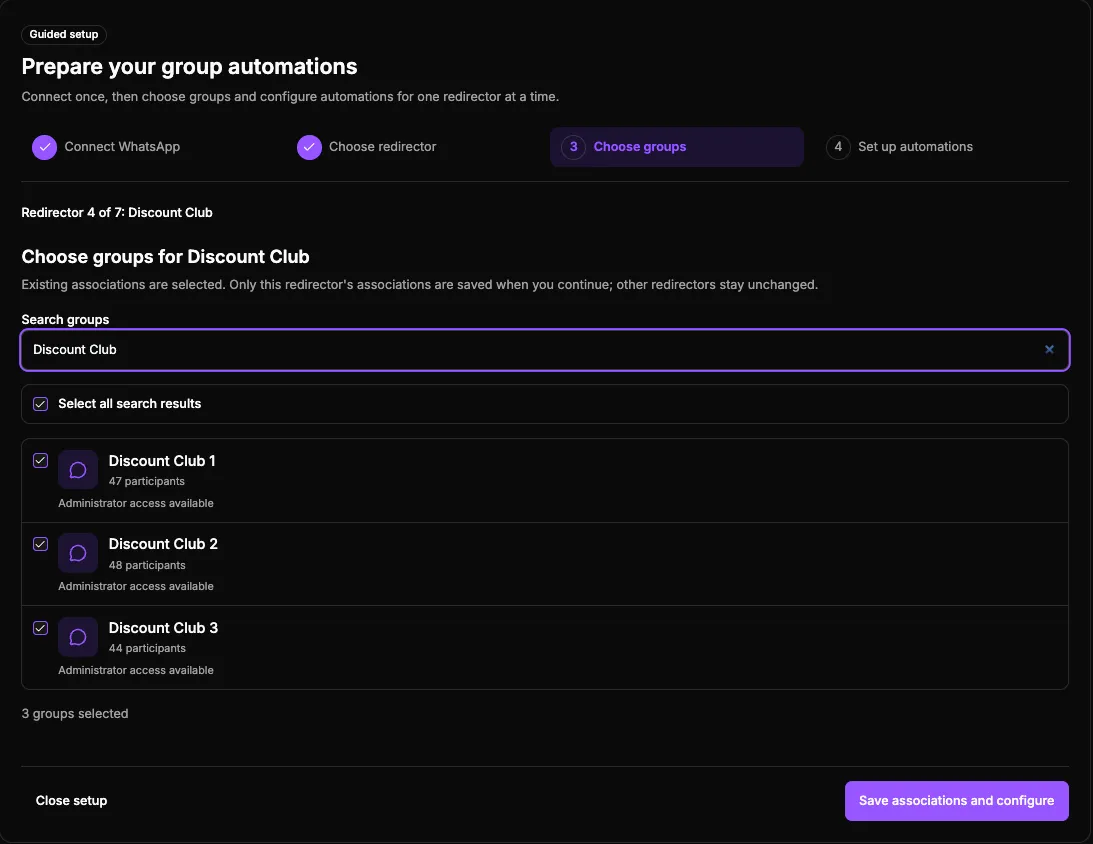
- Use Search groups to find the groups of this redirector. Groups that are already linked appear selected.
- To select every group found by the search, click Select all search results.
- Suggested groups appear first, highlighted and already selected. Review them and deselect any you do not want.
- Check how many groups are selected and click Save associations and configure.
Nothing is linked without your confirmation. The links of other redirectors do not change.
4. Set up the automations
Section titled “4. Set up the automations”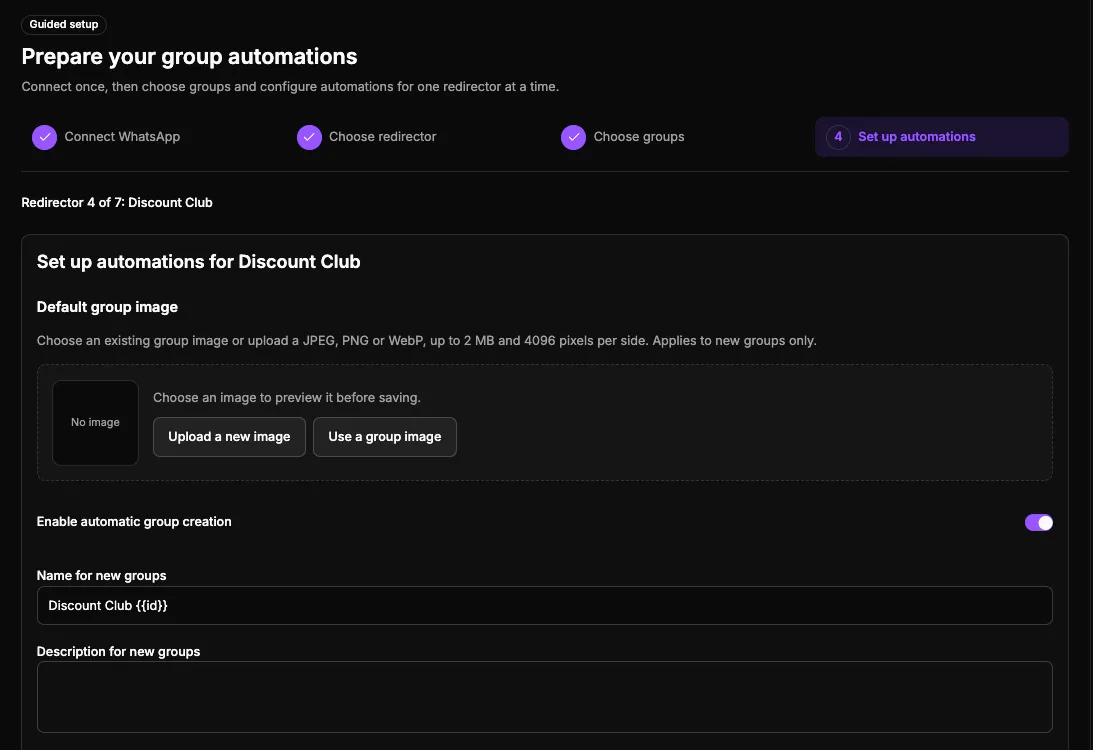
- In Default group image, click Upload a new image or Use a group image. You can use JPEG, PNG, or WebP up to 2 MB.
- Check the Name for new groups. It may already include a suggestion based on the groups you chose. See how the numbered name works.
- If you want, write the Description for new groups.
- Check the Enable automatic group creation option. It starts turned on. Turn it off if you do not want the system to create groups yet.
- In New group defaults, choose disappearing messages and member permissions. These options are explained in Configure automation.
- Click Save settings. The system moves on to the next redirector.
Leaving automatic creation disabled also completes the setup of that redirector. The groups stay linked.
At the end, you will see All redirectors configured. Click Open automations dashboard.
Tip: You can stop halfway. The links and settings you have already saved still apply. To continue later, click Set up automations again.
Overview
Section titled “Overview”The Overview tab shows the health of your automations:
- WhatsApp connection: shows whether the account is connected.
- Redirectors without automation: how many have automatic creation disabled.
- Redirectors with automation: how many have automatic creation enabled.
- Linked groups: how many groups are linked to your redirectors.
Below, the Required actions area lists groups where the connected number is not an administrator yet. Ask a group administrator to promote this number. The exact phone number appears in the message.
The Automation by redirector list is now in Overview itself. It includes redirectors with creation enabled and disabled. Click Configure to open one.
See your redirectors
Section titled “See your redirectors”The Automation by redirector list in Overview shows the URL, pending groups, linked groups, and whether Automation is Enabled or Disabled.
- Use the Name and URL filters to find a redirector.
- Click column headings or sorting buttons. Click again to reverse the order. Enabled automations appear first; sorting applies within each state.
- To create a new redirector, click Create redirector.
Redirectors with Deletion scheduled do not appear here or in guided setup. Restore the redirector in Redirectors before setting it up again.
Manage a redirector
Section titled “Manage a redirector”In Overview, click Configure next to the redirector. The page has two tabs: Linked groups and Configure automation.
Linked groups
Section titled “Linked groups”Here you see the groups linked to the redirector. The list has three columns: Name, Link and capacity, and Actions. Below the name, you see when the group was last checked. In Link and capacity, you see the group link and how many slots are filled.
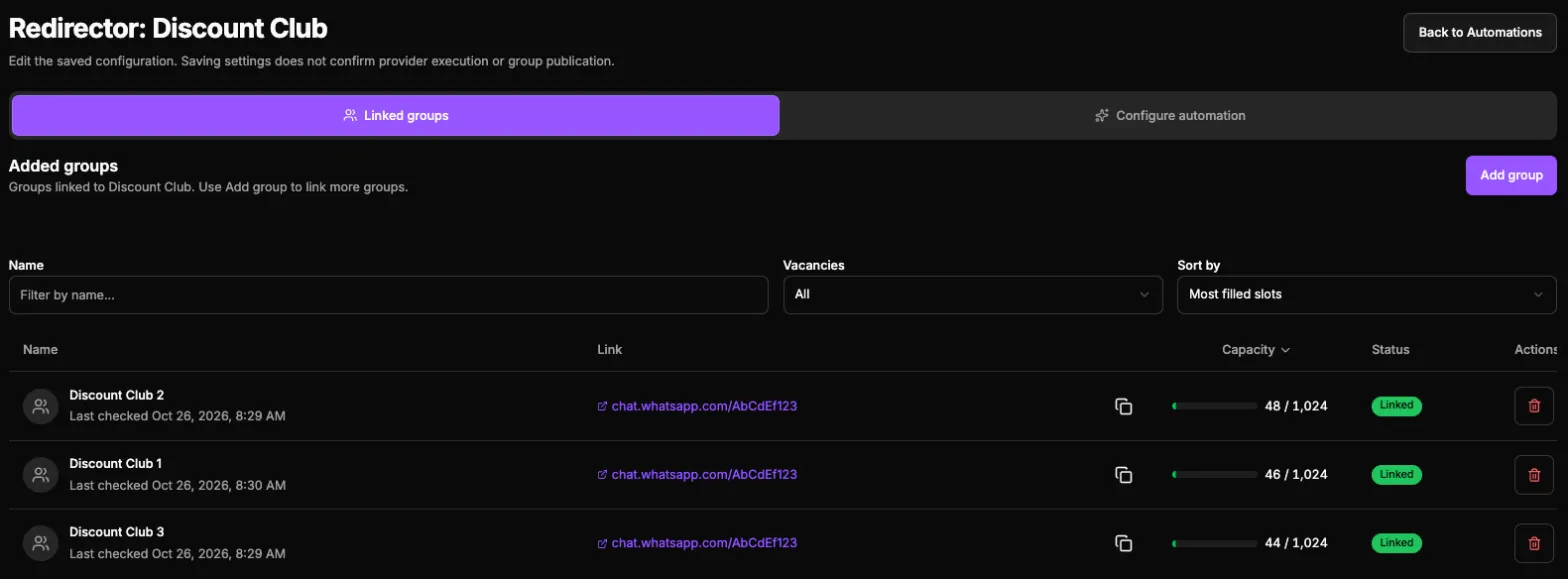
Use the Name and Vacancies filters. To sort, click a column heading or a sorting button, such as Creation order. Pending groups appear first. Name sorting applies within each section; other options apply only to registered groups.
Pending groups include groups added by invite link and groups selected from WhatsApp that are not ready yet. This list is not a count of queued actions.
A group that is still being linked shows a status in place of the link and capacity:
| Status | What it means |
|---|---|
| Processing | The connected number is already an administrator. The system is finishing the link. |
| Administrator required | Ask the group’s administrators to add the connected number to the group’s administrator list. The exact number appears below the status. |
To add groups:
- Click Add group. The Select groups window opens.
- Search and review selected groups, including highlighted suggestions. Groups marked Ready to link already have the connected number as an administrator.
- Click Add selected groups.
If a new group does not appear in the list, click Sync groups, at the top of this window. The system then fetches the changes from WhatsApp.
To take a group out of the redirector, click Remove and confirm. The group is not deleted from WhatsApp.
Configure automation
Section titled “Configure automation”This tab holds everything that defines new groups. When you finish, click Save changes.
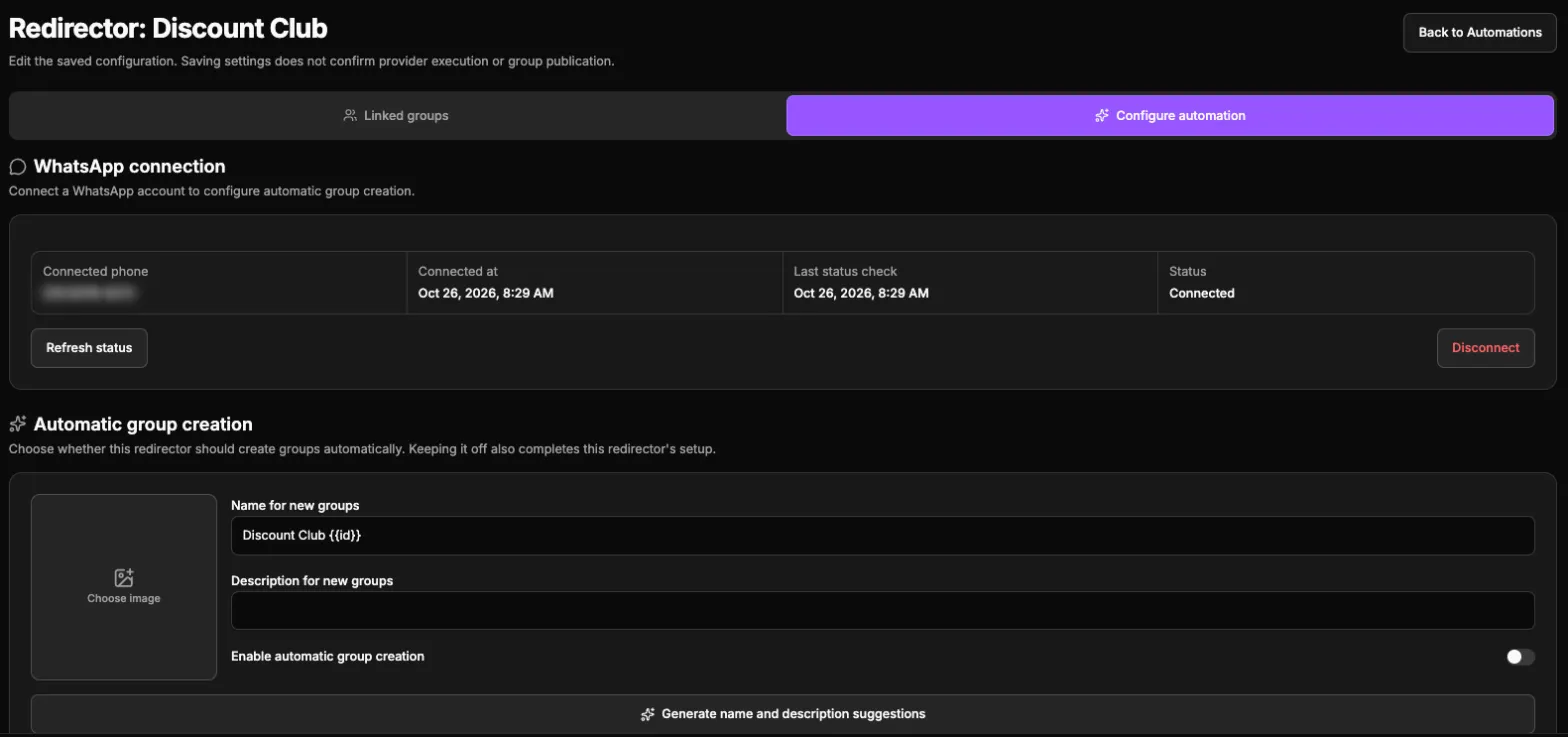
If WhatsApp is not connected, the tab only shows the WhatsApp connection section. Connect it to see the other settings.
Automatic group creation
This section comes first. Click Activate automatic group creation to turn on creation for this redirector. To turn it off, click Deactivate automatic group creation.
Your choice only applies after you click Save changes. When you activate it, the page takes you to Name, description and image. Check these fields before you save.
WhatsApp connection
Shows the connected phone, when it was connected, the last status check, and the status. Click Refresh status to check the connection again.
Name, description and image
- Image: choose the photo of one of your groups or upload a JPEG, PNG, or WebP file up to 2 MB.
- Name for new groups: use up to 100 characters, with the
{{id}}marker. Click Suggest name to get an idea. - Description for new groups: the text shown in the group description. Click Suggest description to get an idea.
Artificial intelligence creates the suggestions based on your current groups. Each button fills only its own field. You can keep typing while the suggestion loads. If a suggestion fails, click Retry name or Retry description.
When choosing a group image, the list only shows groups with an available photo. Search by name and scroll to load more images. You can also use Load more. Photos may take some time to appear after synchronization.
If the name or description is empty when you open the tab, the system tries to suggest it for you. Nothing is saved until you click Save changes.
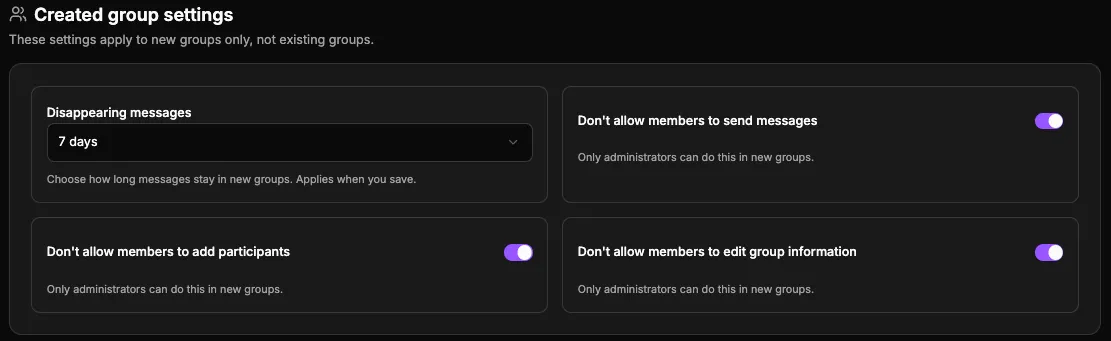
Created group settings
- Don’t allow members to send messages: only administrators send messages.
- Don’t allow members to add participants: only administrators add people.
- Don’t allow members to edit group information: only administrators change the name, photo, and description.
- Disappearing messages: choose Off, 24 hours, 7 days, or 90 days.
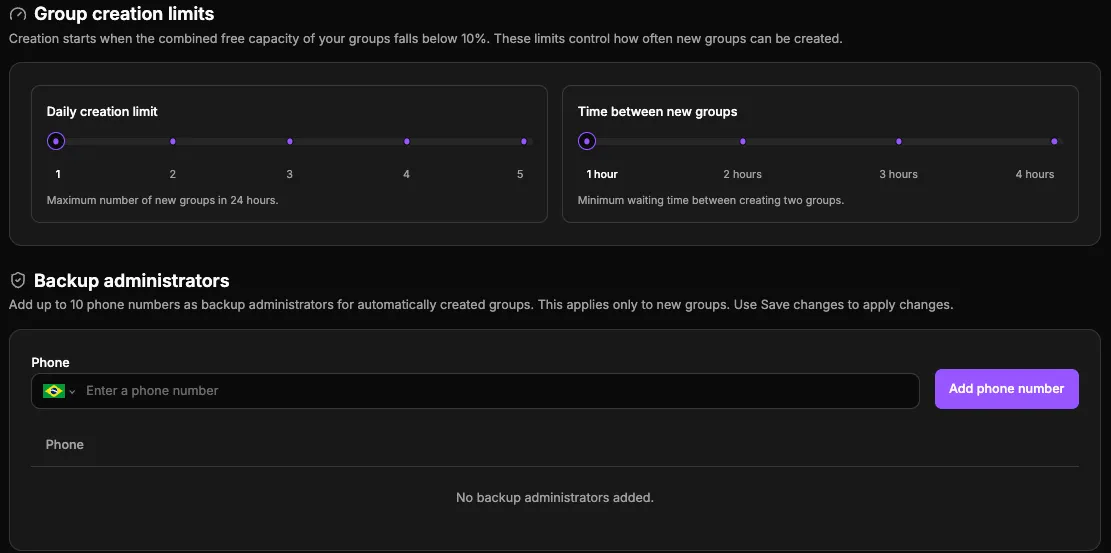
Group creation limits
- Daily creation limit: how many new groups can be created in 24 hours. Choose from 1 to 5. The default is 1 group per day.
- Time between new groups: the minimum waiting time between creating two groups. Choose from 1 to 4 hours. The default is 1 hour.
Backup administrators
Add up to 10 phone numbers, with the country code. These people become administrators of the new groups. This way, another team member can also manage the groups.
How automatic creation works
Section titled “How automatic creation works”The system adds up the free vacancies of all groups in the redirector. Each group has the user limit you defined.
- When free vacancies drop below 10% of the total, the system creates a new group.
- It creates one group at a time and respects the daily limit and the time between groups.
- The new group gets the name, description, image, and permissions you set up.
- The group only joins your link after everything is set up and verified.
- The system continues until at least 10% of vacancies are free again.
Example: you have 5 groups with a limit of 200 people. That is 1,000 vacancies in total, and 10% is 100 vacancies. If the groups have 950 people, only 50 vacancies are free (5%). So the system creates a new group.
If the redirector does not have any group yet, the automation creates the first one. This first group starts right after you activate automatic creation and save. It does not wait for the queue pace.
Numbered group names
Section titled “Numbered group names”Use the {{id}} marker exactly once in the name. The system replaces the marker with a sequential number.
For example, the name VIP Community {{id}} creates groups such as VIP Community 4, VIP Community 5, and so on.
Tip: Click Suggest name to follow the pattern of the names you already use.
Follow the activity
Section titled “Follow the activity”The Activity tab shows what the automation is doing. At the top, Queue and protection shows the current pace, such as Balanced · 1 minute.
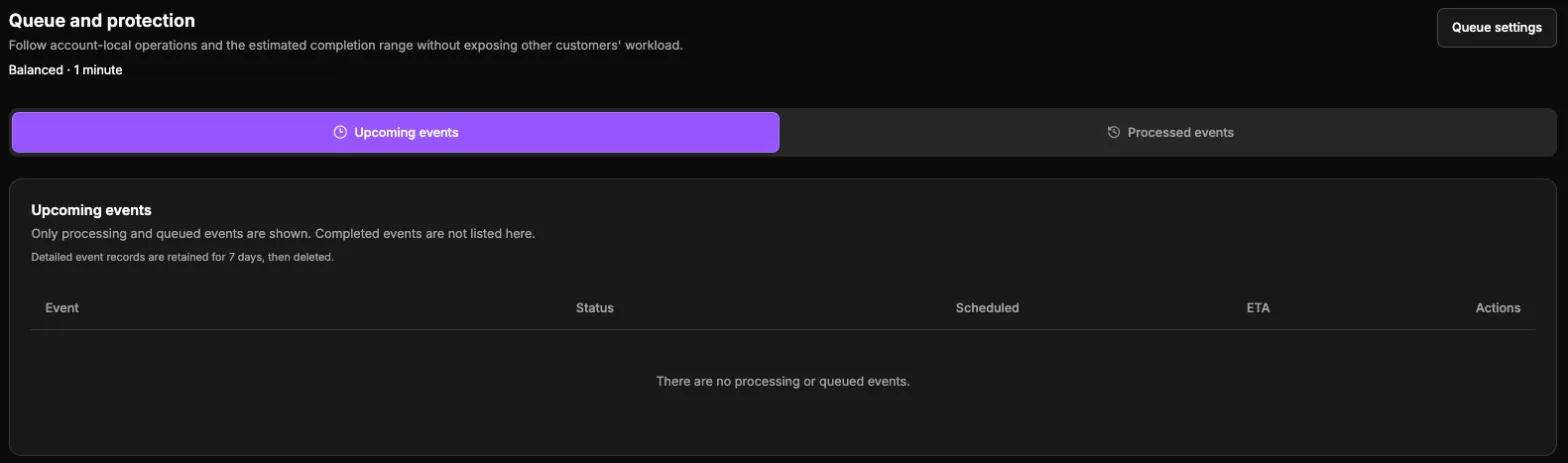
- Upcoming actions: actions that are Queued or Processing, such as creating a group or applying a setting. When allowed, you can use Cancel operation on an action that has not started yet.
- Processed actions: the history of finished actions. In the Operation status filter, choose Completed, Failed, or Canceled.
Detailed records are available for 7 days.
You can sort using column headings or the buttons above the list. Processing actions stay first. Changing the display order does not change execution order.
If an operation has an unknown outcome, check the group in WhatsApp and its details in Activity. Do not repeat creation without checking: the group may already exist. Other independent actions can continue.
In Queue settings, you choose the Requested pace: Balanced (1 minute) or Conservative (10 minutes). Safety protections cannot be turned off, so the actual interval may be longer.
Linking existing groups does not wait for this pace. Applying images, descriptions, permissions, and administrators also bypasses the general queue interval. Connection and safety checks still apply; group creation keeps its own limits.
Protect your WhatsApp account
Section titled “Protect your WhatsApp account”WhatsApp may restrict accounts that create many groups in a short time. To reduce this risk:
- Prefer a low daily limit and a longer time between groups.
- Avoid disconnecting WhatsApp. Each new connection goes through a warm-up period, with a slower pace at first.
- Keep the connected account’s phone online.
No setting guarantees full protection against WhatsApp restrictions.
Common issues
Section titled “Common issues”I opened Automations and saw a screen about the Scale plan. Your account is not on Scale yet. This screen shows what you can automate and how to start. Click View Scale plan to change your plan. Choosing a plan does not connect WhatsApp or turn on automations. You decide what to set up.
I see a pending payment notice. Fix your subscription in Manage subscription. After that, you can access Automations again.
The Automations menu is disabled. Your account does not have an active subscription. Choose a plan to unlock the menu.
The setup shows “The search is taking longer than expected”. The system is still receiving the list of your WhatsApp groups. Your progress is saved. Wait a few minutes and click Check again. If you prefer, close the setup and continue later.
A group shows Administrator required. Ask the group’s administrators to add the connected number to the group’s administrator list in WhatsApp. Then wait for the update. The status changes to Processing. When the link is ready, the group shows its link and capacity.
The automation did not create a new group. Check whether:
- automatic creation is enabled in the redirector;
- free vacancies are below 10%;
- the daily limit or the time between groups has not been reached;
- WhatsApp is still connected;
- monitoring is set to Instantly.
I changed plans and WhatsApp was disconnected. Plans without group monitoring do not keep the WhatsApp connection. When you return to Scale, connect WhatsApp again. Reconnection is not automatic. See if you change plans.
If you need help, write to suporte@gruposinteligentes.com.