
Offer publisher
The Offer publisher finds deals for you and sends them to your WhatsApp groups. Each message carries your affiliate link. When someone buys through the link, the sale counts for you.
You choose what to search for and the sending rules. Then the publisher works on its own, within the schedule you set.
What you can do
Section titled “What you can do”- Follow the guided setup, which shows each step in order.
- Connect your Mercado Livre affiliate account by pasting your account cookies.
- Set keywords so each redirector receives deals from your niche.
- Choose the minimum discount, the interval between sends and the sending schedule.
- Avoid repeating the same product for a few days.
- Choose a message template and customize the image with a watermark and a discount badge.
- Open each offer with an AI phrase, in a serious or funny style.
- Follow the offers that are awaiting sending and the ones already sent.
- See your earnings, orders and clicks for the last 30 days.
- Cancel sending an offer before it goes out.
Before you start
Section titled “Before you start”Check these items:
- Your account must be on the Scale plan or in the 14-day trial.
- Have a Mercado Livre affiliate account.
- Have a connected WhatsApp. It is the same connection used by Automations.
- That WhatsApp must be an admin of the groups that will receive the offers.
- Have at least one redirector with groups.
Tip: Choosing the plan does not connect your accounts or start sending offers. You still need to complete the setup below.
Where to find it
Section titled “Where to find it”In the dashboard side menu, click Offer publisher. The page has two tabs: Overview and Reports.
The Overview tab has these areas:
| Area | What it is for |
|---|---|
| Last 30 days | Shows Earnings, Orders, Clicks and Buyers from your affiliate account. |
| Guided setup | Opens the assistant that sets up the publisher step by step. |
| Your affiliate accounts | Shows the Mercado Livre connection. |
| WhatsApp connection | Shows the WhatsApp that sends the offers and any Required actions. |
| Your redirectors | Lists your redirectors with their earnings and sales for the last 30 days. Shows whether the publisher is Activated and has the Configure button. |
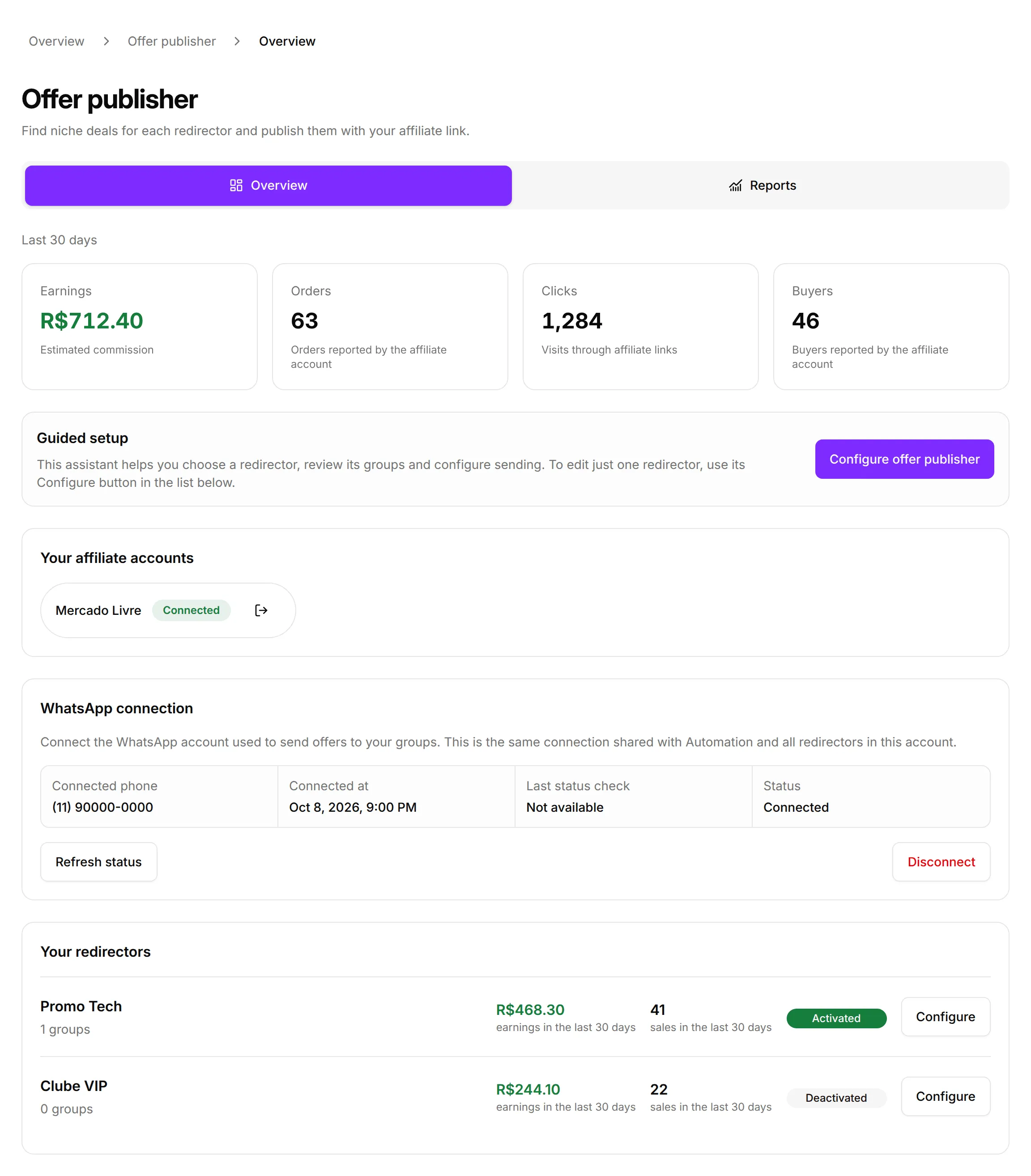
If your plan does not include the publisher, the page shows what it does and the View Scale plan button.
Guided setup
Section titled “Guided setup”The guided setup takes you through every step, in order. It opens on its own when no redirector has the publisher Activated.
The assistant has four steps:
- Connect WhatsApp: connect the WhatsApp that will send the offers.
- Choose redirector: choose a redirector or create a new one.
- Choose groups: check the groups that will receive the offers. Your WhatsApp must be an admin of at least one confirmed group. Then click Save associations and configure.
- Configure offer publisher: set where to search, what to search for and the sending rules. You can also connect Mercado Livre here.
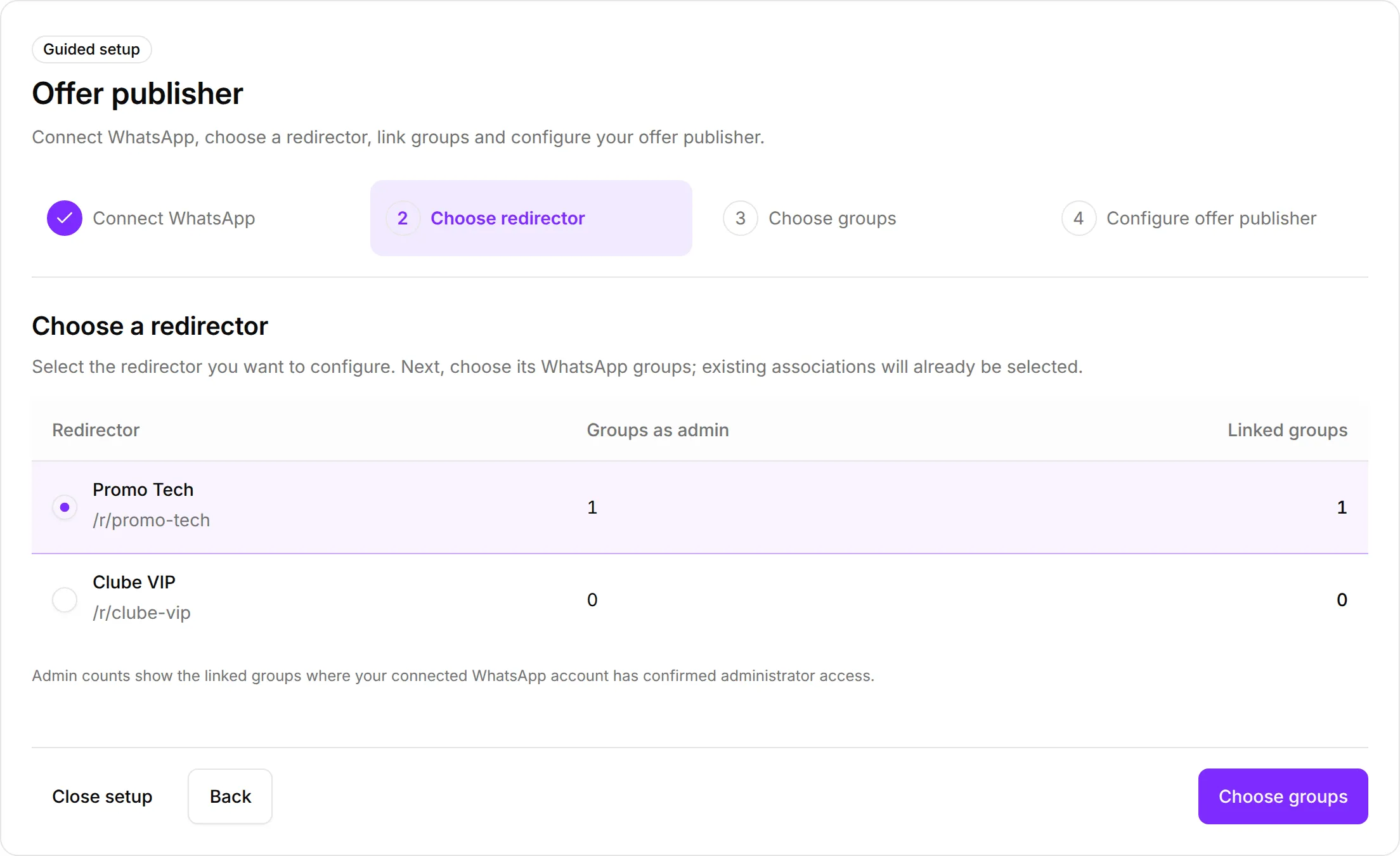
On the last step, click Save configuration. This saves the rules and turns the publisher Activated on that redirector.
Want to stop halfway? Click Close setup. The Overview shows the notice Setup is not complete and the Complete guided setup button. Use this button to continue where you left off. If you leave the page, the assistant starts from the beginning on your next visit.
After you activate it, use the Configure offer publisher button to open the assistant again. To change only one redirector, use the Configure button in the Your redirectors list.
Tip: Activating the publisher does not guarantee that an offer was already found or sent. Follow the sends in the Live tab.
Step 1: Connect Mercado Livre
Section titled “Step 1: Connect Mercado Livre”To connect, you paste the cookies of your Mercado Livre account. Cookies are small pieces of information your browser keeps to remember that you are signed in. They make it possible to create your affiliate link. You do not need to authorize anything on another page.
- In Your affiliate accounts, click Connect next to Mercado Livre. The same button appears in each redirector’s Configuration tab and in the Reports tab.
- On a computer, open the Mercado Livre website and sign in to your account.
- Press F12 to open your browser’s developer tools.
- Open the Network tab and reload the page.
- Right-click a request from the Mercado Livre website that has cookies.
- Choose Copy > Copy as cURL. This works in Chrome and Firefox.
- Go back to the publisher and paste everything into the cURL command or cookies field.
- Click Save credentials.
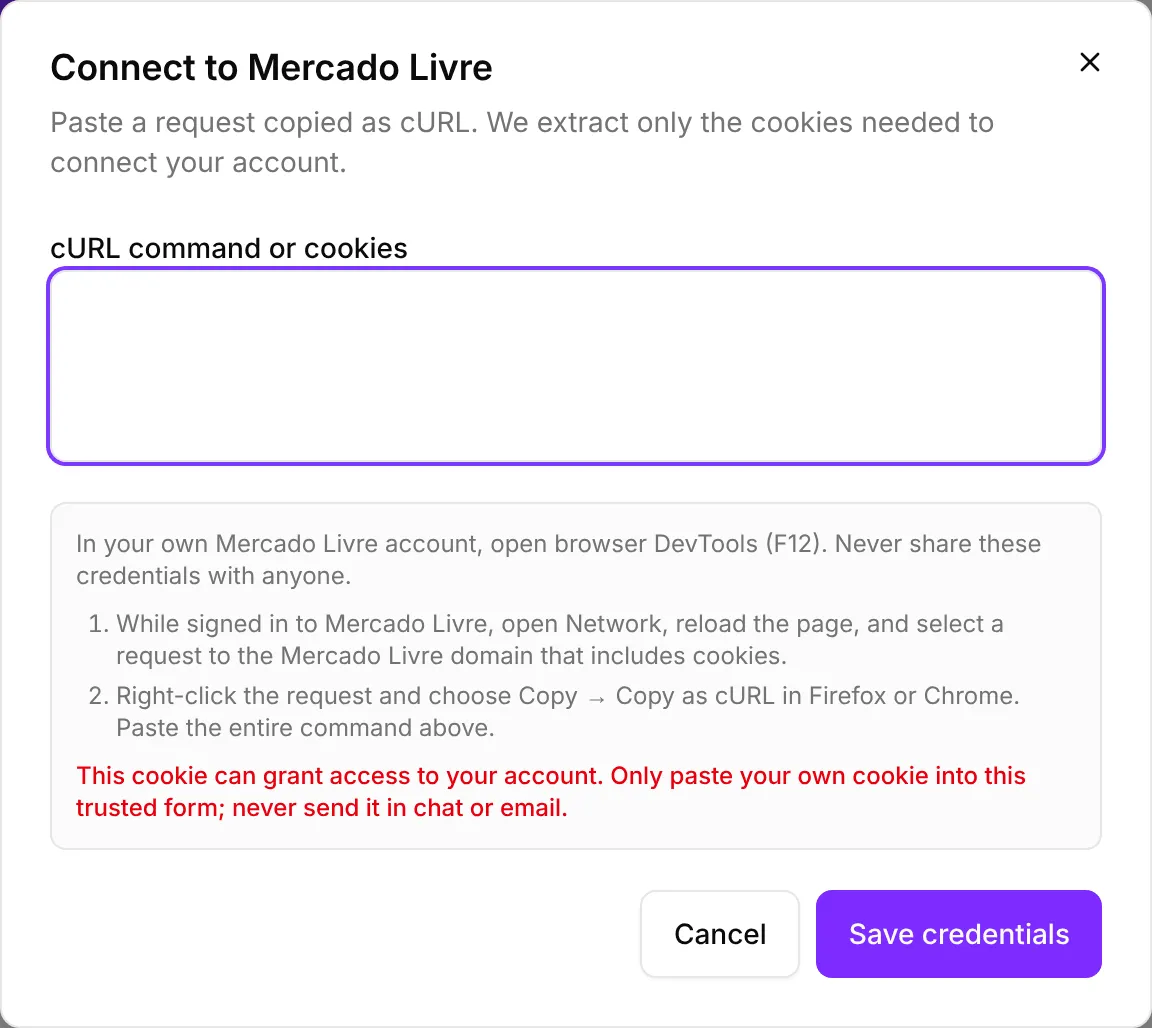
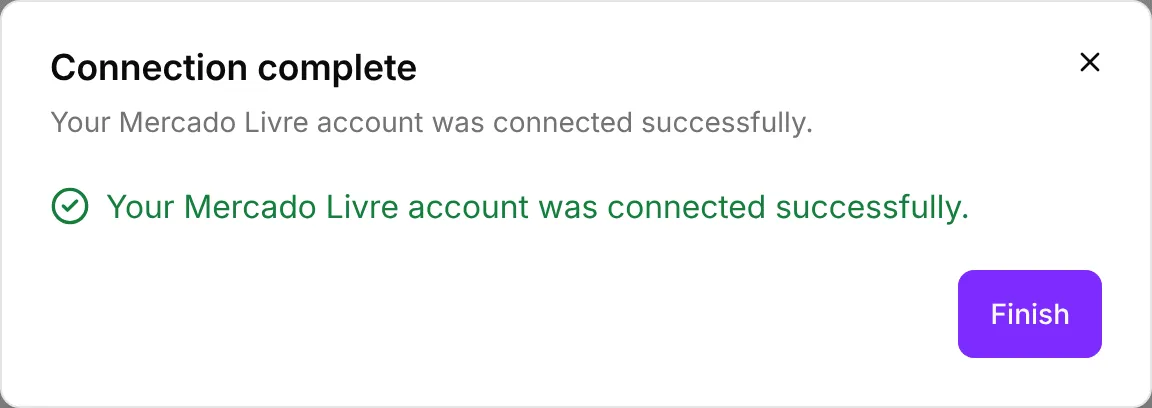
When everything works, you see Connection complete. Click Finish. Mercado Livre then shows Connected.
Tip: You can also paste only the value of the Cookie header, without the word
Cookie:at the start. The text can have up to 8,192 characters.
You may see these notices:
- The details were saved, but the connection is still awaiting confirmation. Come back later and check the status.
- The cookies were saved, but this connection was not reactivated. Disconnect the account and connect it again.
- Another Mercado Livre account is already linked. Each Grupos Inteligentes account connects one Mercado Livre account. Disconnect the current one before connecting another.
If the connection drops
Section titled “If the connection drops”Mercado Livre may end the connection, for example when your session expires. When this happens:
- You receive an email saying that your Mercado Livre connection needs attention. Click Open Offer Publisher in the email.
- The publisher button shows Connect again.
Copy the cookies again and repeat the steps above.
Disconnect Mercado Livre
Section titled “Disconnect Mercado Livre”Click the Disconnect icon next to Mercado Livre. This deletes the registration saved in your account. Your session on the Mercado Livre website stays open.
Step 2: Connect WhatsApp
Section titled “Step 2: Connect WhatsApp”Offers go out through the same WhatsApp used by Automations. This connection applies to all your redirectors.
- On the publisher home page, find the WhatsApp connection area. In the guided setup, this is the first step.
- Click Connect WhatsApp and scan the QR code with your phone. The steps are the same as connecting WhatsApp in Automations.
- Check the Required actions. They show, for example, groups where the number is not an admin yet.
If WhatsApp disconnects, the publisher stops sending. Valid offers are kept and go out when you reconnect, as long as they have not expired.
Step 3: Configure a redirector
Section titled “Step 3: Configure a redirector”Each redirector has its own configuration. In Your redirectors, click Configure. The redirector page has five tabs:
| Tab | What it is for |
|---|---|
| Live | Shows offers awaiting sending and offers already sent. |
| Groups | Shows and links the groups that receive the offers. |
| Reports | Shows the earnings, sales, clicks and conversion of that redirector. |
| Message | Sets the message template and the image customization. |
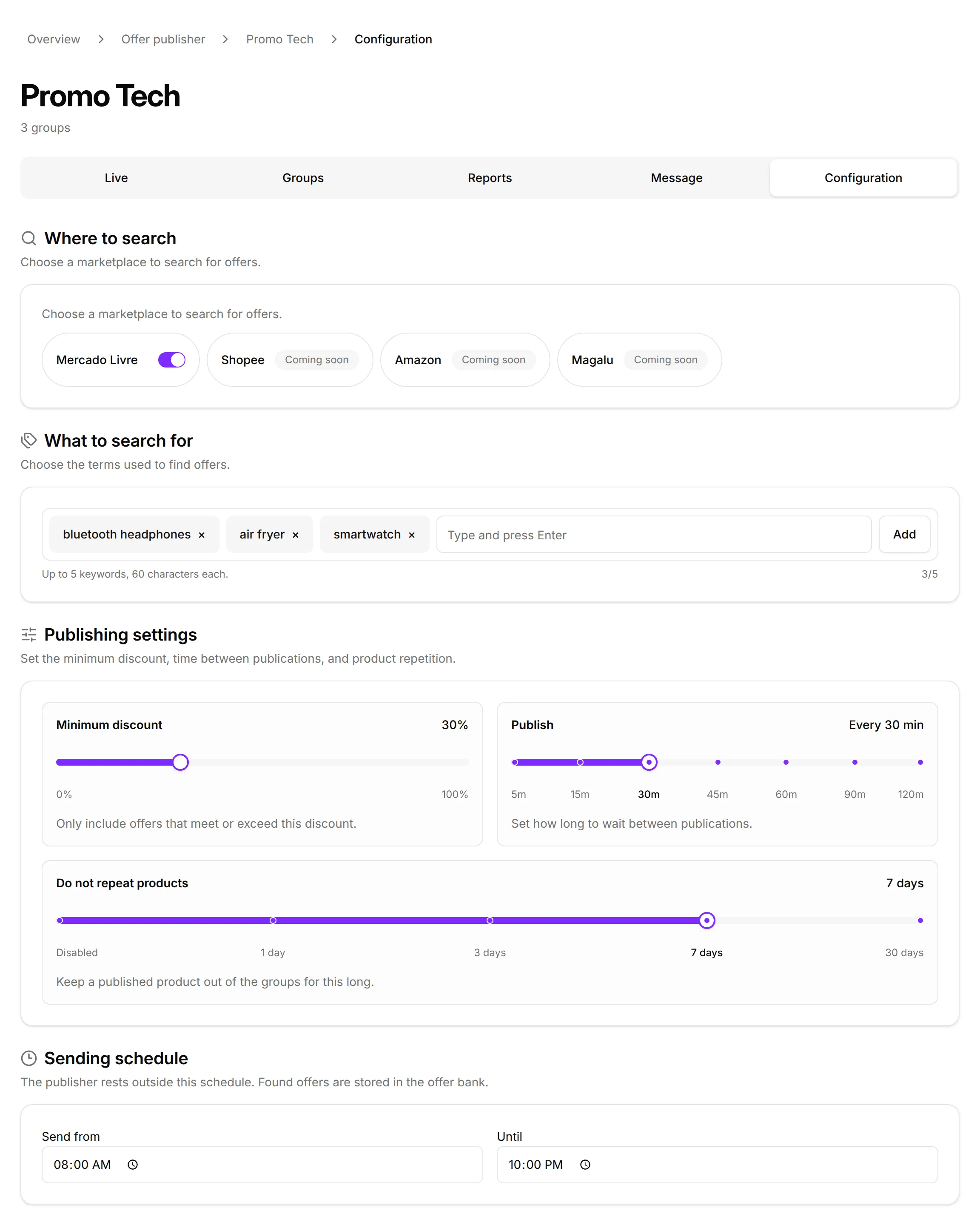
| Configuration | Sets where to search, what to search for and the sending rules. |
Where to search
Section titled “Where to search”Turn on the Mercado Livre switch. If your account is not connected yet, the Connect button appears right there.
Shopee, Amazon and Magalu appear as Coming soon. You cannot use them yet.
Tip: To stop sending offers from a redirector, turn off the Mercado Livre switch and click Save. No offers go out while no marketplace is turned on.
What to search for
Section titled “What to search for”Type a keyword and press Enter, or click Add. Use terms from your niche, such as “running shoes” or “air fryer”.
- You can use up to 5 keywords.
- Each keyword can have up to 60 characters.
- If you typed something and did not add it, you are warned before saving.
Publishing settings
Section titled “Publishing settings”| Option | What it does |
|---|---|
| Minimum discount | Sends only offers with this discount or more. Goes from 0% to 100%. |
| Publish | Sets the time between one send and the next: 5, 15, 30, 45, 60, 90 or 120 minutes. |
| Do not repeat products | Does not send a product with the same name again for 1, 3, 7 or 30 days. Or choose Disabled. |
Here is how each option works:
- A minimum discount of 0% also accepts offers without a discount. In that case, the message shows only the current price, with no previous price or percentage.
- Publish sends one offer at a time to all groups of the redirector. Then it waits for the interval before sending the next one.
- Do not repeat products compares the product name. Even if the price drops, a product with the same name does not come back before the period ends.
Sending schedule
Section titled “Sending schedule”Set Send from and Until. Outside this schedule, the publisher rests.
- The schedule follows Brasília time (Brazil).
- The start time must be before the end time, on the same day. For example, you cannot start at 22:00 and end at 06:00.
Save and activate
Section titled “Save and activate”Click Save. When you save, the publisher becomes Activated for that redirector. On the home page, the redirector then shows Activated.
If a field is wrong, the page takes you to it and explains what to fix.
Customize the message
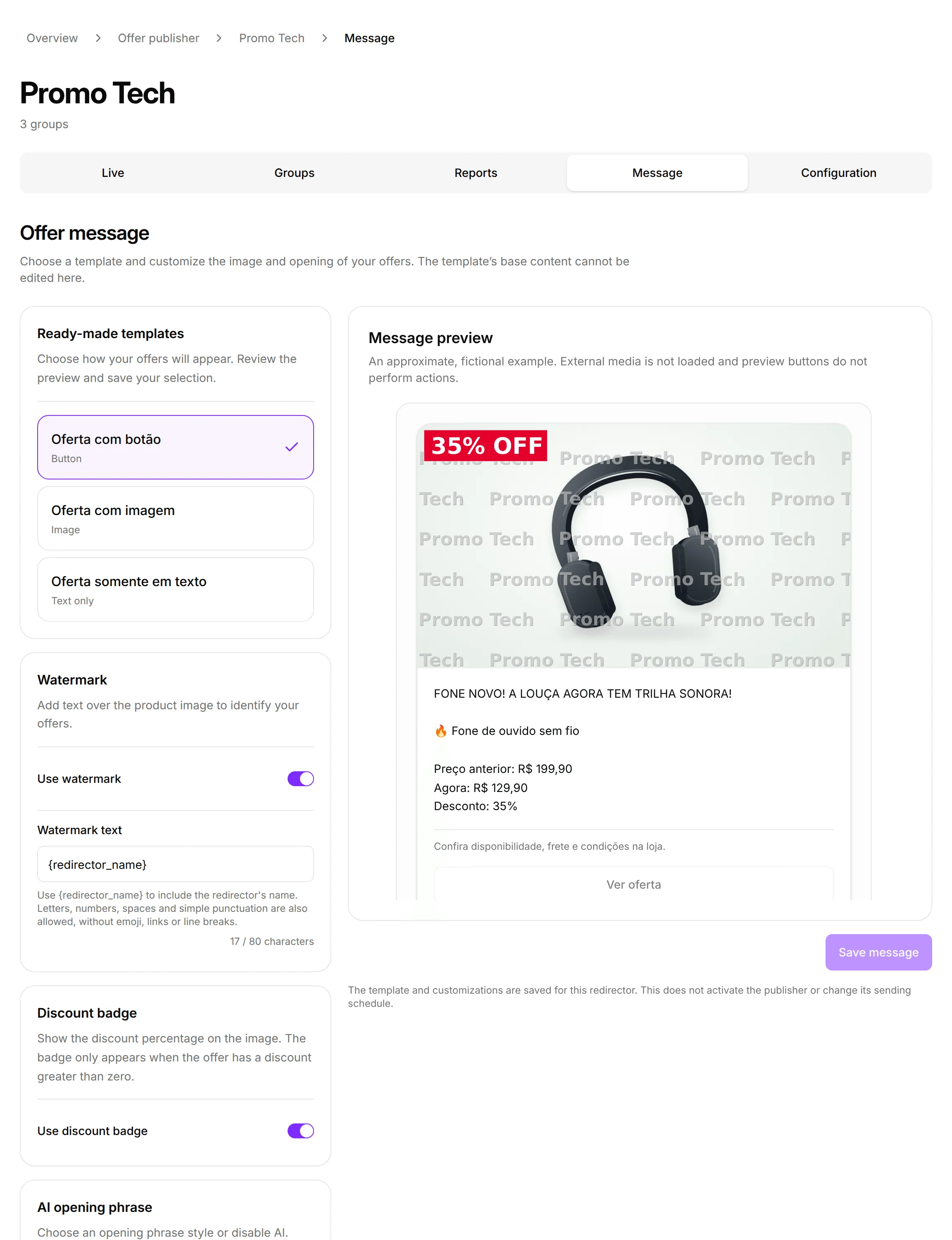
Section titled “Customize the message”In the Message tab, you choose the template and customize the image and the opening of your offers. The Message preview shows the result with a sample product. It sends nothing.
Choose the template
Section titled “Choose the template”In Ready-made templates, choose a template.
The templates are written in Portuguese (Brazil), even when you use the app in English. Their names appear in Portuguese, and the messages sent to your groups are in Portuguese too.
| Template (name in the app) | How the offer looks |
|---|---|
| Oferta com botão (button) | Product photo, previous price, current price, discount and the Ver oferta button. |
| Oferta com imagem (image) | Product photo, price, discount and offer link. |
| Oferta somente em texto (text only) | Text only, with price, discount and offer link. |
You cannot edit the template text.
Watermark, discount badge and AI phrase
Section titled “Watermark, discount badge and AI phrase”Below the templates, you find three options:
| Option | What it does |
|---|---|
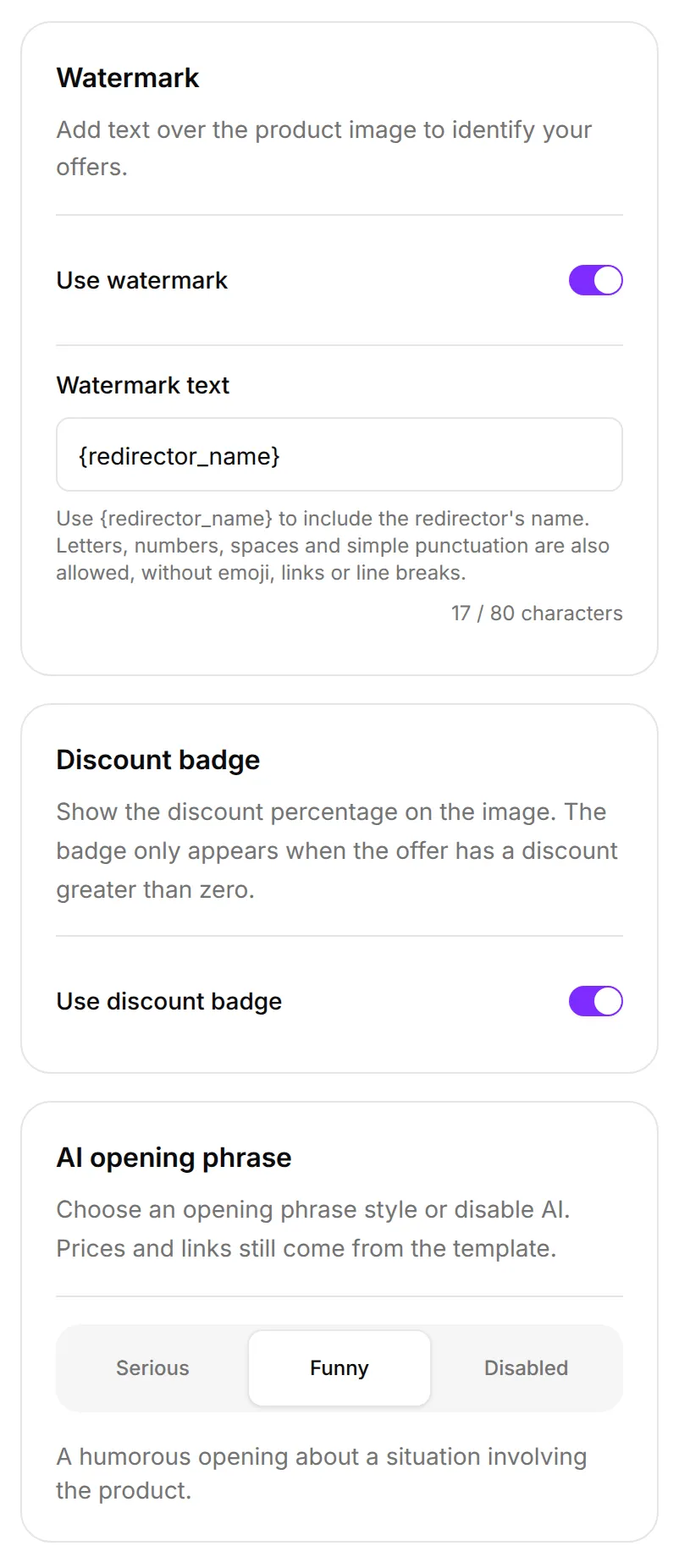
| Watermark | Writes a text over the product photo to identify your offers. Turn on Use watermark and fill in the Watermark text. |
| Discount badge | Shows the discount percentage on the photo, such as 35% OFF. It appears only when the offer has a discount greater than zero. |
| AI opening phrase | Adds a short phrase at the start of the message. Choose Serious, Funny or Disabled. |
Here are the details of each option:
- Watermark text: use up to 80 characters. It accepts letters, numbers, spaces and simple punctuation. It does not accept emojis, links or line breaks.
{redirector_name}: type it like this, with the braces, to use the redirector name in the watermark.- Serious: creates a straightforward opening about how the product is used.
- Funny: creates a humorous opening, in capital letters.
- The phrase in the preview is only a fixed example. When sending, the AI creates a phrase for each offer. If the AI fails, the message goes out without the phrase.
- Prices and the link still come from the template. The AI does not change this information.
The Oferta somente em texto (text-only) template does not use the watermark or the discount badge. These options stay saved for when you use a template with an image again.
Tip: On redirectors set up for the first time, the three options are already on: watermark with the redirector name, discount badge and the Funny phrase. Redirectors that already used the publisher before this update keep them off until you change them.
Click Save message to keep the template and the customization. Saving the message does not activate the publisher: to do that, save the Configuration tab.
The link in the message goes through our redirect and takes people to the product with your affiliate link.
Choose the groups
Section titled “Choose the groups”In the Groups tab, you see the redirector groups that receive the offers. You can also link other groups from your WhatsApp. It works the same way as the linked groups in Automations.
If WhatsApp is not connected, the tab warns that you cannot add groups. It takes you to the WhatsApp connection on the home page. Your already linked groups are still shown.
Follow the offers
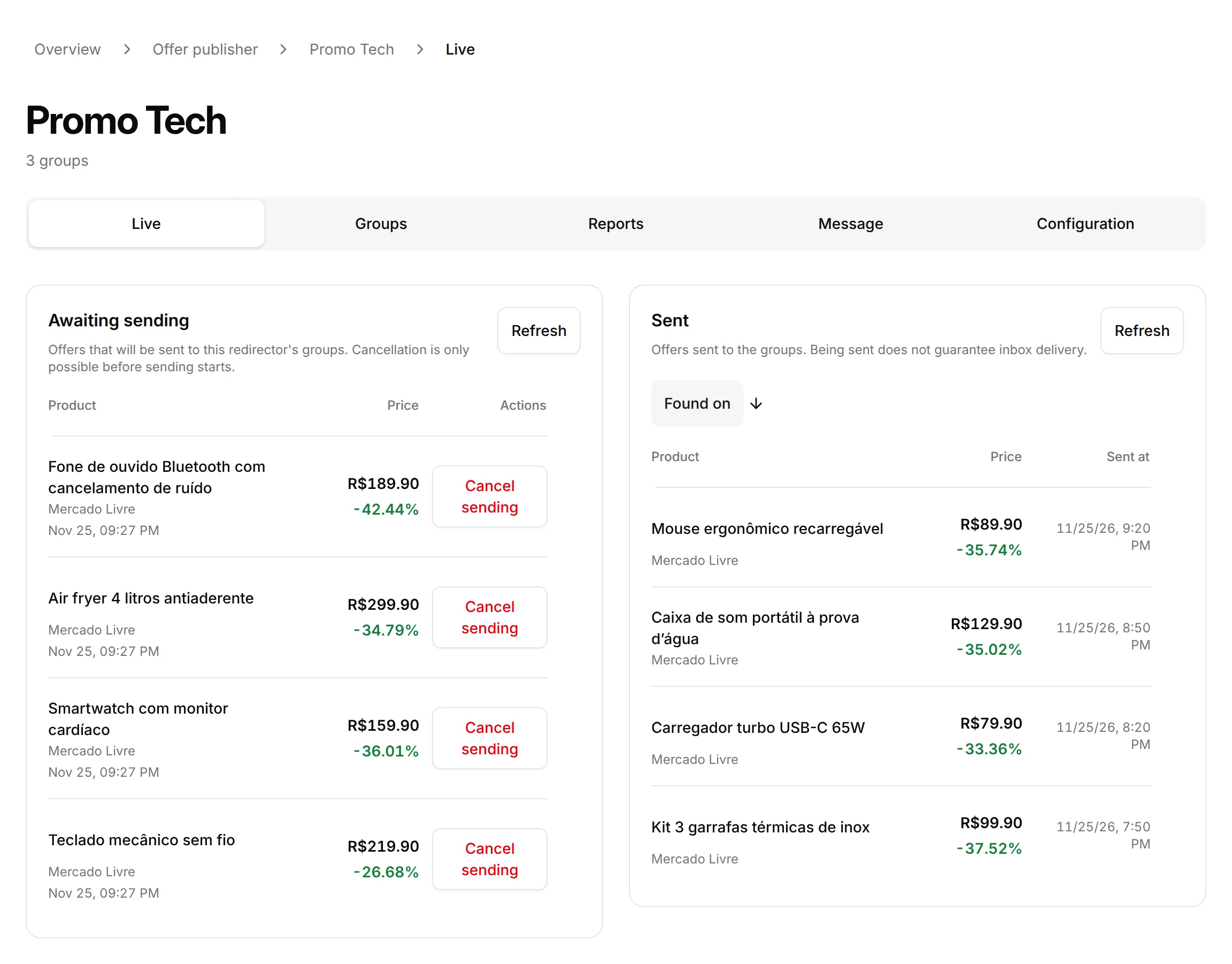
Section titled “Follow the offers”In the Live tab, you see two lists. They update on their own.
Awaiting sending
Section titled “Awaiting sending”These are the offers that passed your rules and will go out to the groups. The publisher automatically approves offers that match your keywords, minimum discount and repetition rule.
The list order does not guarantee the exact sending order.
These are the offers that already went out to the groups. The Sent at column shows when sending finished.
“Sent” means WhatsApp accepted the message. It does not guarantee that every member received or read it.
Each send to a group also appears in the Automations Activity, with the Send offer action.
To see older offers, scroll the list or click Load more. To go back to the ones at the top, use Load previous offers.
Cancel sending an offer
Section titled “Cancel sending an offer”- In Awaiting sending, click Cancel sending on the offer.
- Confirm in Cancel sending this offer?.
Follow your results
Section titled “Follow your results”The reports always show the last 30 days.
Account reports
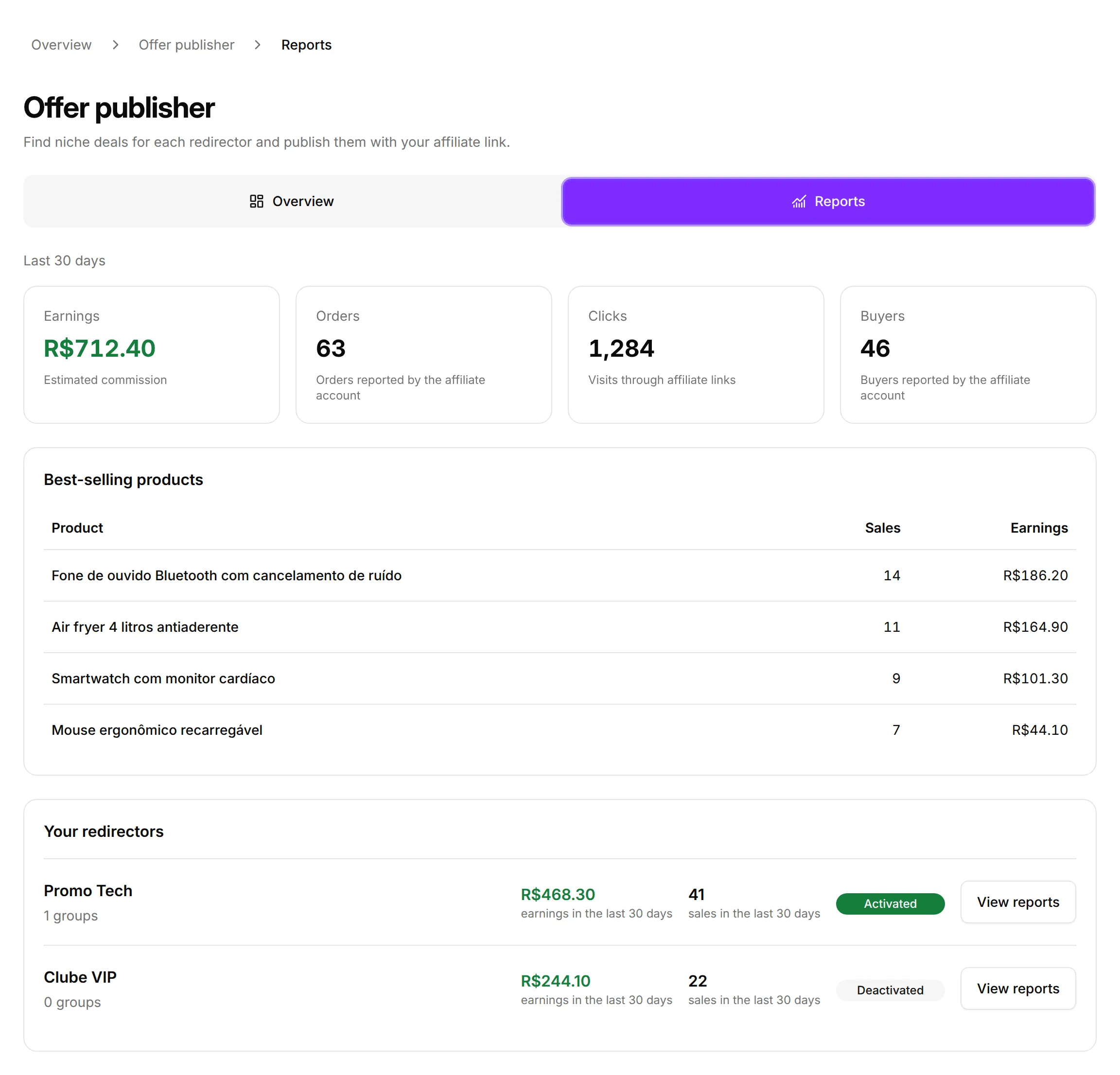
Section titled “Account reports”On the publisher home page, open the Reports tab. You see:
- Earnings: the estimated commission from your sales.
- Orders and Buyers: reported by your affiliate account.
- Clicks: visits through your affiliate links.
- Best-selling products: the products that sold the most, with the sales and earnings of each one.
- Your redirectors: the earnings and sales of each redirector. Click View reports to open the details.
Redirector reports
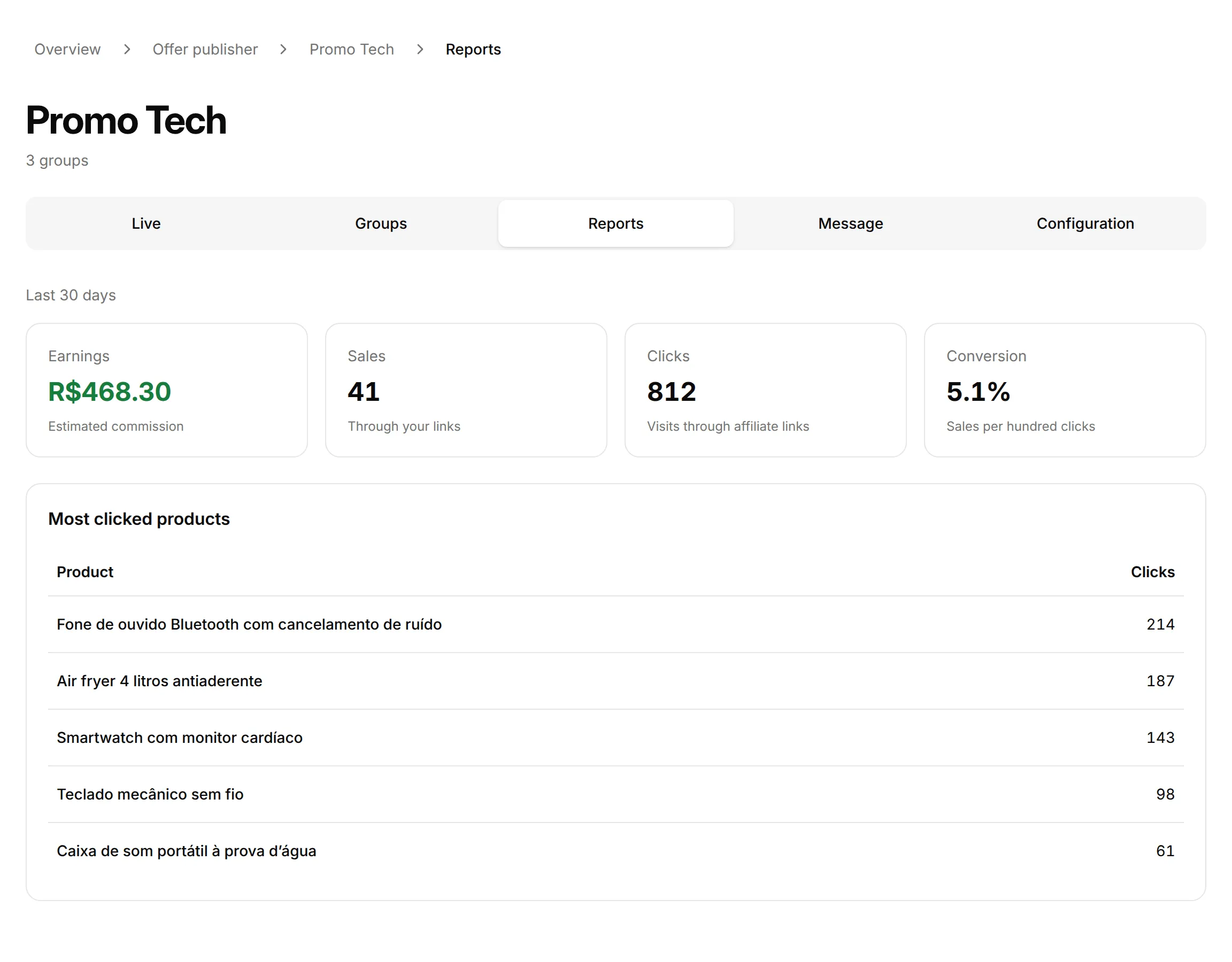
Section titled “Redirector reports”On the redirector page, open the Reports tab. You see:
- Earnings and Sales that came from that redirector’s links.
- Clicks: clicks on the links of the offers the publisher sent.
- Conversion: how many sales happened for every hundred clicks.
- Most clicked products: the five products with the most clicks.
Where the numbers come from:
- Earnings, sales, orders and buyers come from your Mercado Livre affiliate account. They may change when Mercado Livre updates its data.
- Clicks for each redirector are counted by Grupos Inteligentes. Account clicks come from Mercado Livre. That is why the totals can differ.
- Without Mercado Livre connected, the reports show Connect an affiliate account to view metrics. The Most clicked products are still shown.
How the publisher decides what to send
Section titled “How the publisher decides what to send”- The publisher searches Mercado Livre for deals using your keywords.
- It discards offers below the minimum discount, unavailable, expired or repeating a recently sent product.
- Offers that pass are approved and go to Awaiting sending.
- Before sending, it prepares the message: the image with the watermark and badge, if they are on, and the AI opening phrase.
- Within the Sending schedule, it sends one offer to all groups of the redirector.
- It waits for the interval chosen in Publish and sends the next one.
Offers that expire before going out are not sent.
If you change plans
Section titled “If you change plans”If your account leaves the Scale plan, the publisher stops sending offers. Your settings stay saved. They apply again when you subscribe to a plan that includes the publisher.
Common issues
Section titled “Common issues”No offers appear in Awaiting sending
Section titled “No offers appear in Awaiting sending”- Check that Mercado Livre is Connected.
- Check that the Mercado Livre switch is on in the Configuration tab.
- Use broader keywords. Very specific terms find fewer deals.
- Lower the Minimum discount.
- Shorten the Do not repeat products period.
Offers stay waiting and are not sent
Section titled “Offers stay waiting and are not sent”- Check that WhatsApp is connected.
- Check that the current time is within the Sending schedule, in Brasília time.
- Check the Required actions. The number must be an admin of the groups.
- The templates with image and with button need the product photo. If an offer arrives without a photo, or if the image cannot be prepared, it is not sent with these templates. Try the Oferta somente em texto (text-only) template.
The reports show no numbers
Section titled “The reports show no numbers”- Check that Mercado Livre is Connected. Without the connection, only the Most clicked products appear.
- If you see an error, click Try again. If it continues, disconnect and connect Mercado Livre again.
Mercado Livre asks you to connect again
Section titled “Mercado Livre asks you to connect again”Your account session may have expired. Copy and paste the cookies again.
Still have questions? Email suporte@gruposinteligentes.com.